
Using Voices by Epidemic Sound: Your guide
Learn how to create professional, natural-sounding voiceovers with Epidemic Sound.

Click the walkthrough that’s right for you, then start creating.
- How to create voiceovers on the web
- How to create voiceovers directly in your video editor
- Tips for creating voiceovers
- Tips for creating voiceovers using your own voice
1. How to create voiceovers on the web
Create voiceovers for any project with Voices by Epidemic Sound. A roster of professional voice artists now sits directly within your workflow, ready to soundtrack ads, social media clips, feature-length content, and everything in-between.
Select the language, type in your text, and adjust the pacing. Create and download your high-quality voiceover in seconds.
How to explore the catalog and choose a voice
- Log in to your Epidemic Sound account and select “Voices” from the navigation bar.
- The Voices overview will open. Click any voice to hear a preview and explore the artist’s accent and tone. Read their bio by clicking the “Information” icon.
- To use a particular voice, click “Select.” This redirects you to the “Create Voiceover” tab. Alternatively, select a voice directly from the “Create” tab by clicking the dropdown menu.
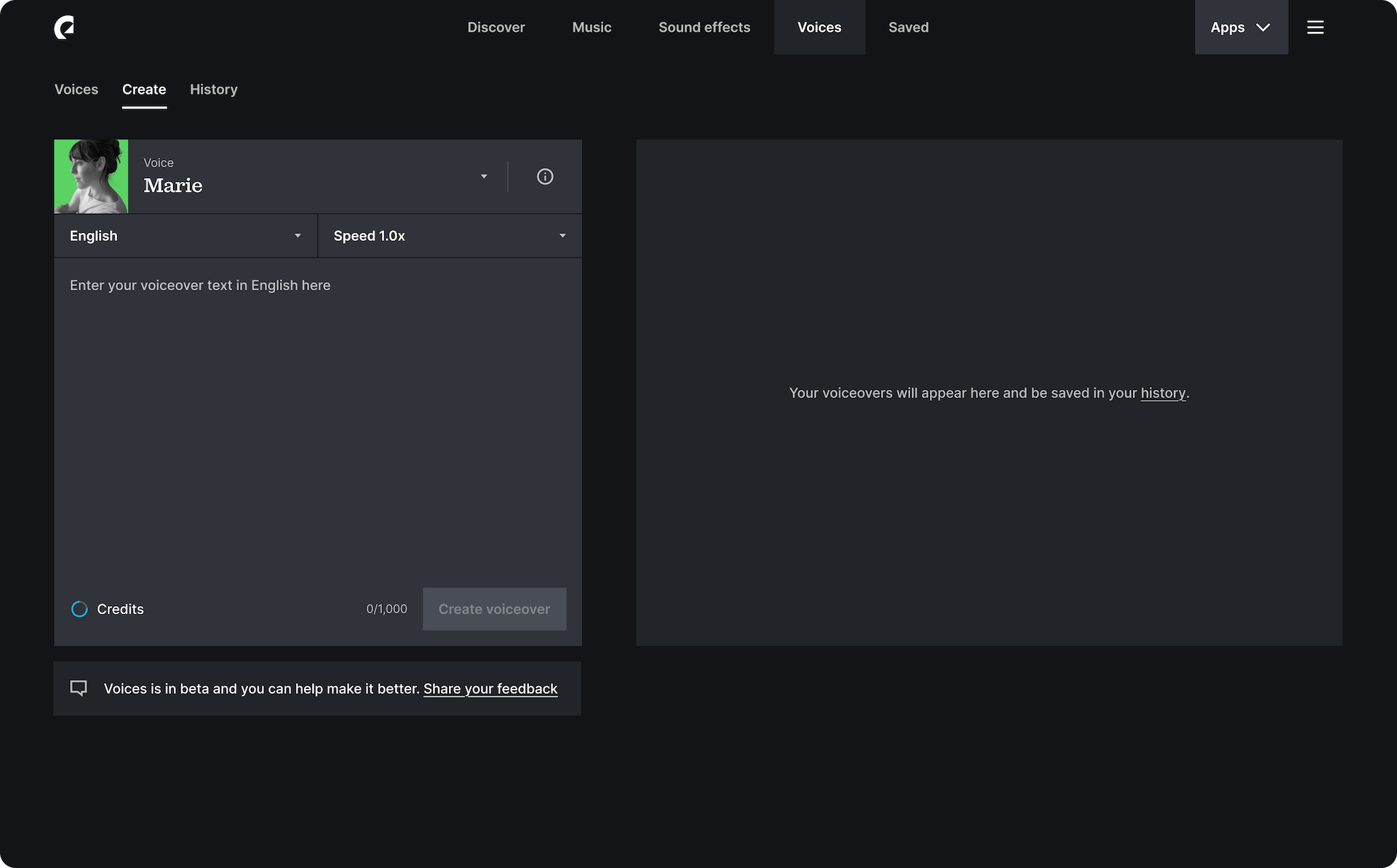
How to create voiceovers
- Choose your provider. In the dropdown below the text box, select the provider behind your voiceover: Cartesia or ElevenLabs. ElevenLabs gives you more natural-sounding voices — especially for non-English languages — plus emotion tags and pronunciation control. Your choice applies only to the current voiceover.
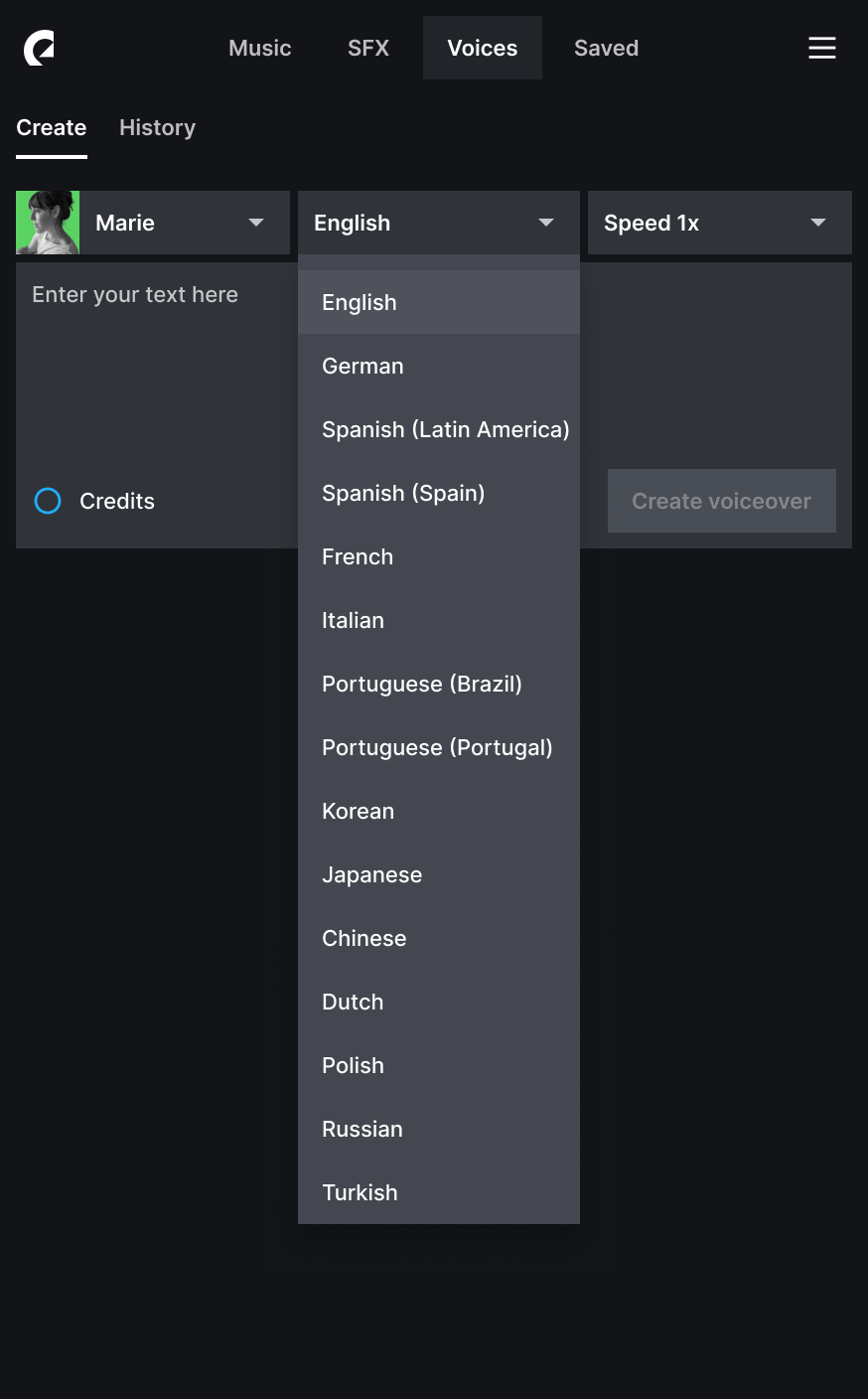
- Select the language. In the dropdown above the text box, choose the text’s language. If you’re using ElevenLabs, skip this; just type your text in the language you want, and the model recognizes it automatically.
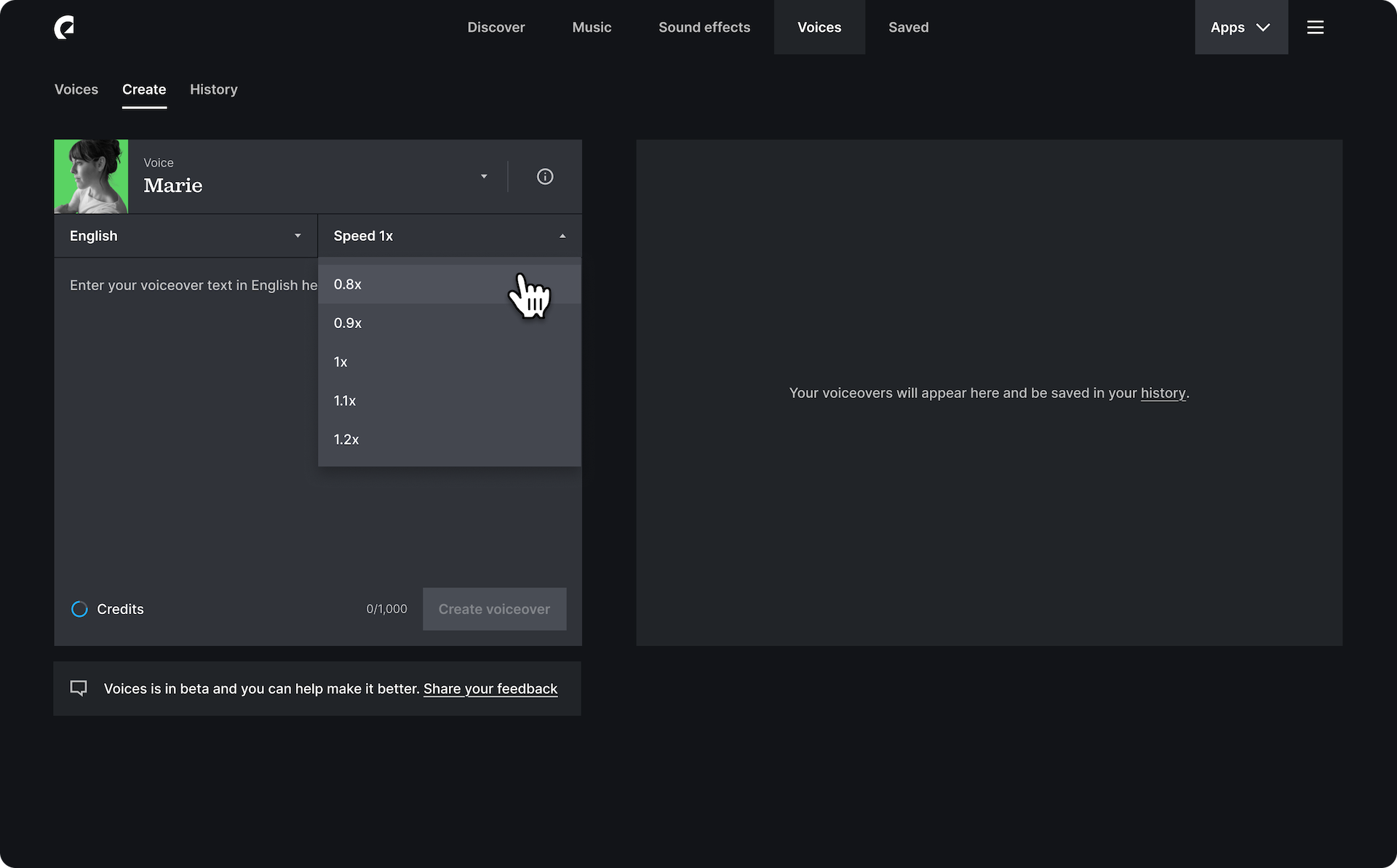
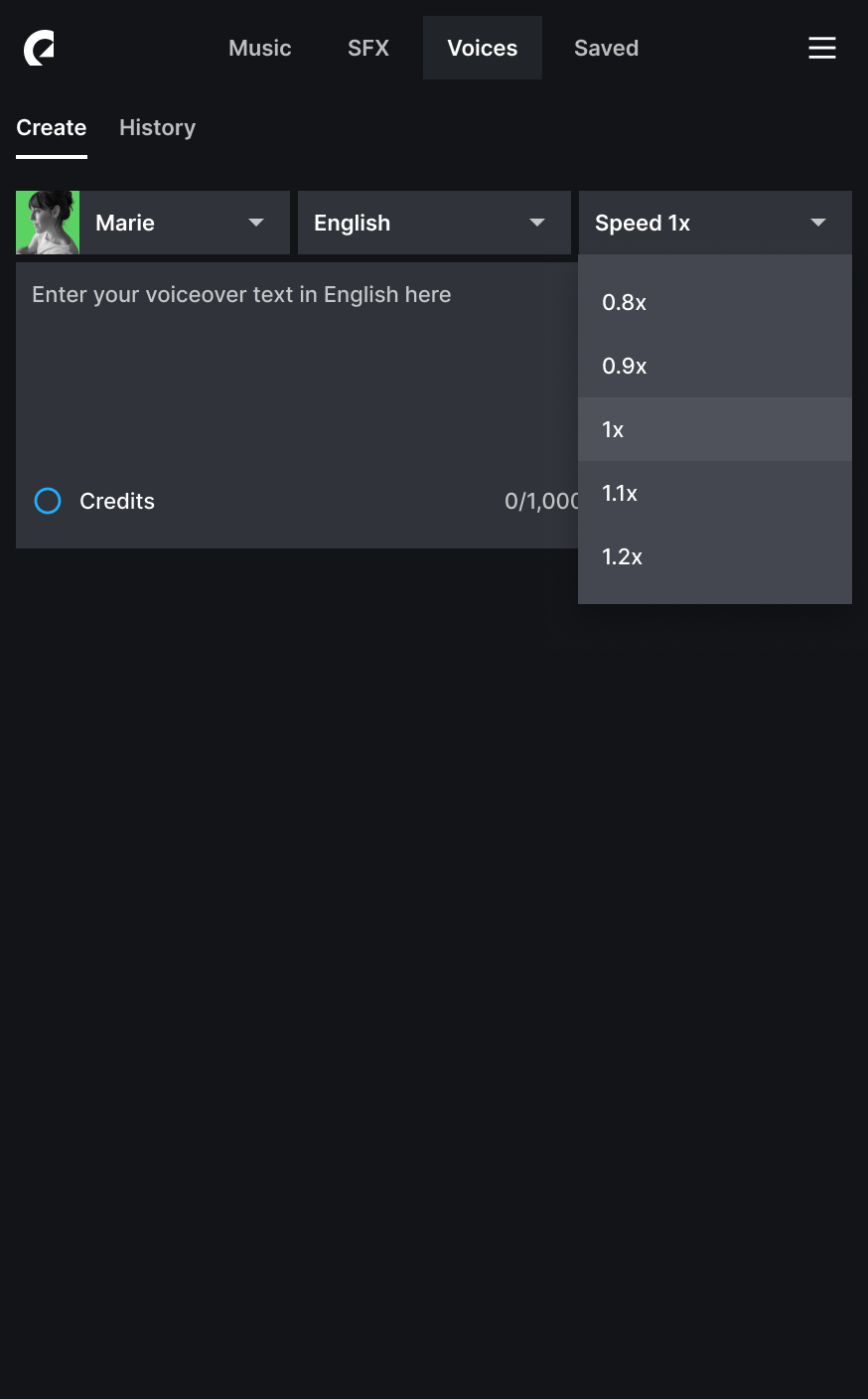
- Adjust the speed. Use the dropdown next to “Languages” to adjust the speed. Choose from a range between 0.8x and 1.2x speed.
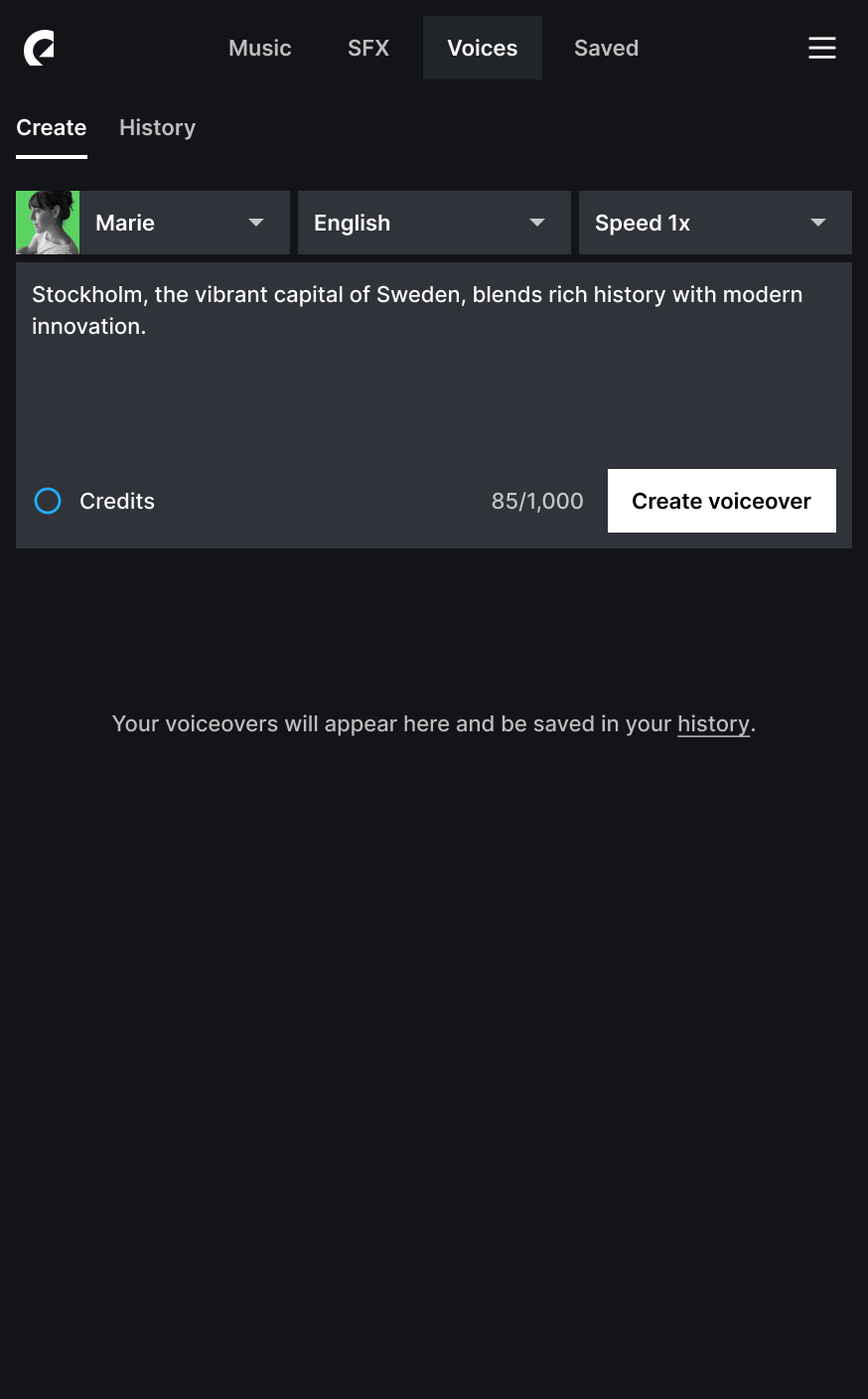
- Type your text in the desired voiceover language. You can use up to 2,000 characters per voiceover, with each character counting toward your credits. With Cartesia, that’s 1 credit per character; with ElevenLabs, it’s 3 credits per character (for speech-to-speech voiceovers, it’s 15 vs. 45 credits per second). Your allowance is shared across both providers, but ElevenLabs uses credits faster. For example, a 1,000-character script costs 1,000 credits with Cartesia or 3,000 with ElevenLabs.
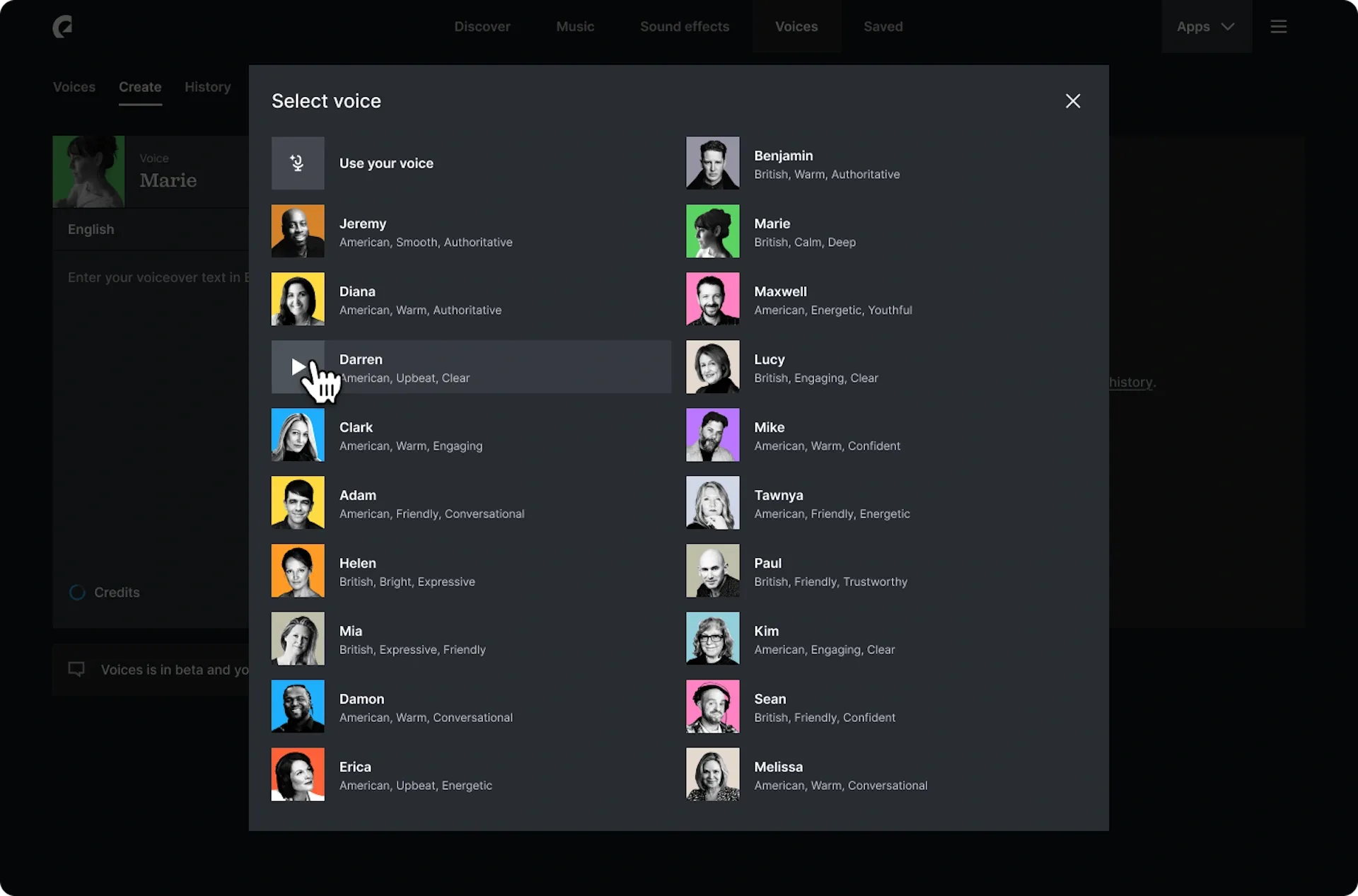
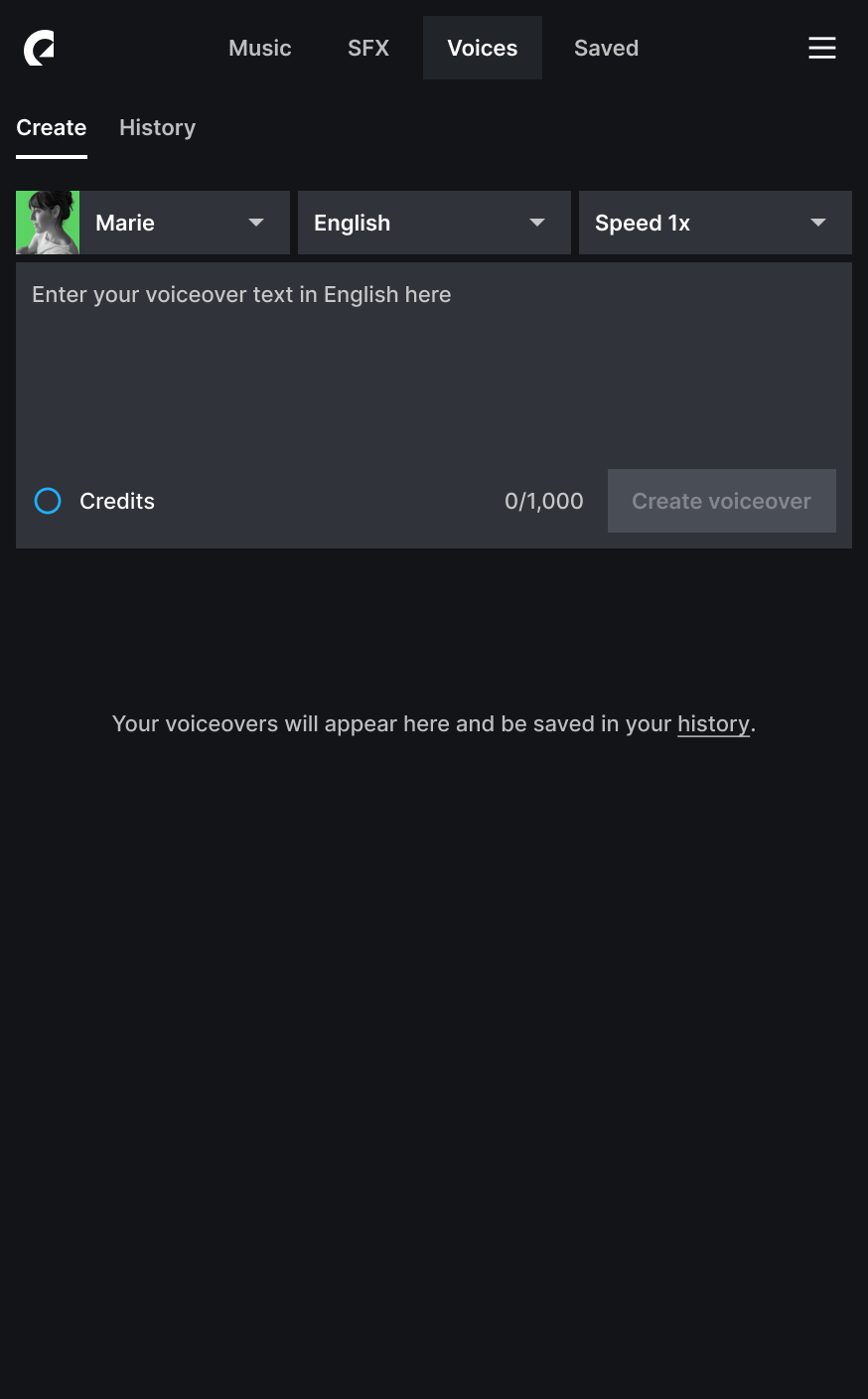
- Click “Create voiceover.” Your voiceover will appear on the right-hand side of the screen.
Check out the below screenshots for a more visual walkthrough.
Select language
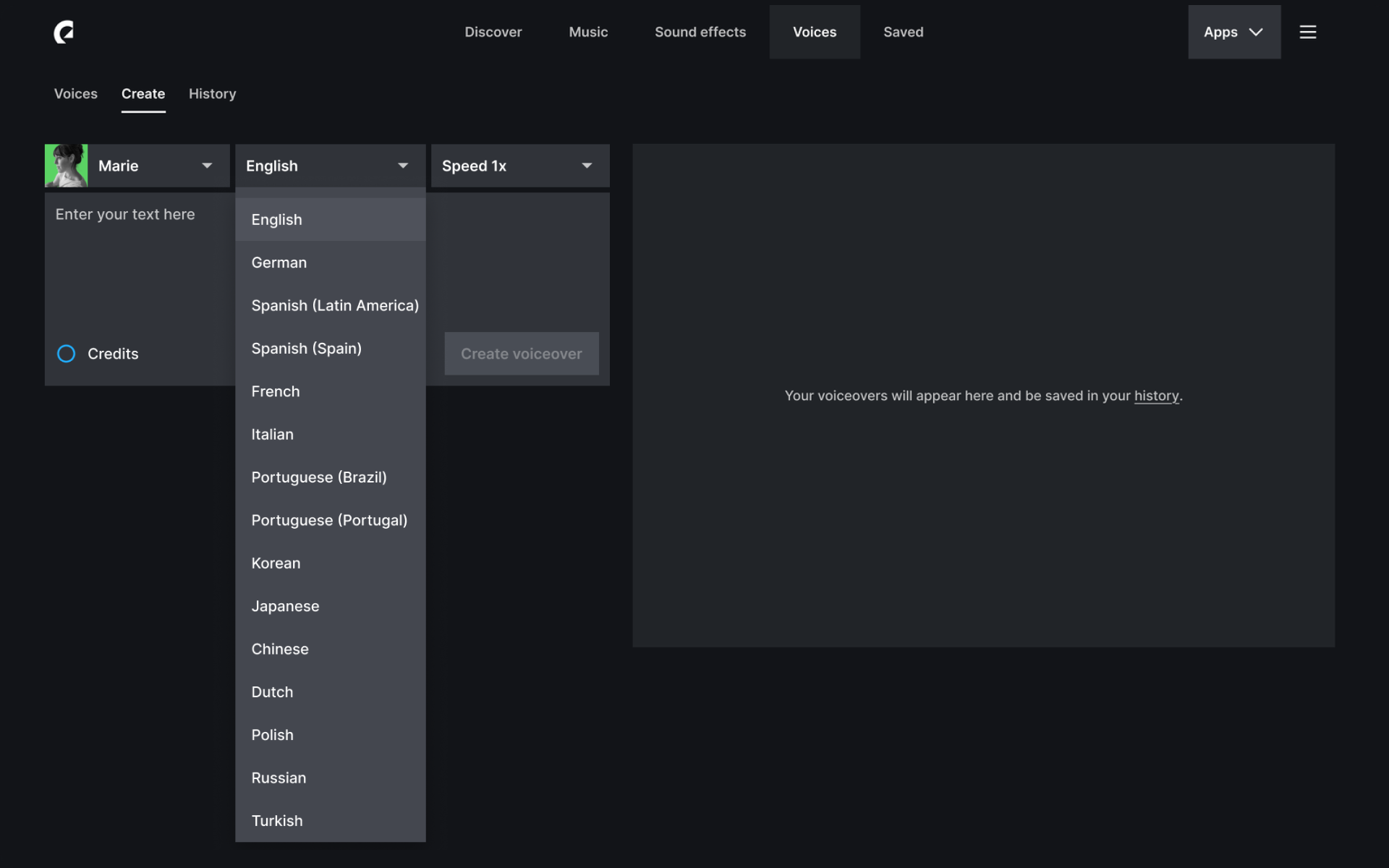
Languages include English, German, Spanish (Latin America), Spanish (Spain), French, Italian, Portuguese (Brazil), Portuguese (Portugal), Korean, Japanese, Dutch, Polish, Russian, and Turkish.
The languages above are available with Cartesia. ElevenLabs supports more than 70 languages, including many not available with Cartesia:
Afrikaans, Arabic, Armenian, Assamese, Azerbaijani, Belarusian, Bengali, Bosnian, Bulgarian, Catalan, Cebuano, Chichewa, Croatian, Czech, Danish, Dutch, English, Estonian, Filipino, Finnish, French, Galician, Georgian, German, Greek, Gujarati, Hausa, Hebrew, Hindi, Hungarian, Icelandic, Indonesian, Irish, Italian, Japanese, Javanese, Kannada, Kazakh, Kirghiz, Korean, Latvian, Lingala, Lithuanian, Luxembourgish, Macedonian, Malay, Malayalam, Mandarin Chinese, Marathi, Nepali, Norwegian, Pashto, Persian, Polish, Portuguese, Punjabi, Romanian, Russian, Serbian, Sindhi, Slovak, Slovenian, Somali, Spanish, Swahili, Swedish, Tamil, Telugu, Thai, Turkish, Ukrainian, Urdu, Vietnamese, and Welsh.
Select speed
Type your text
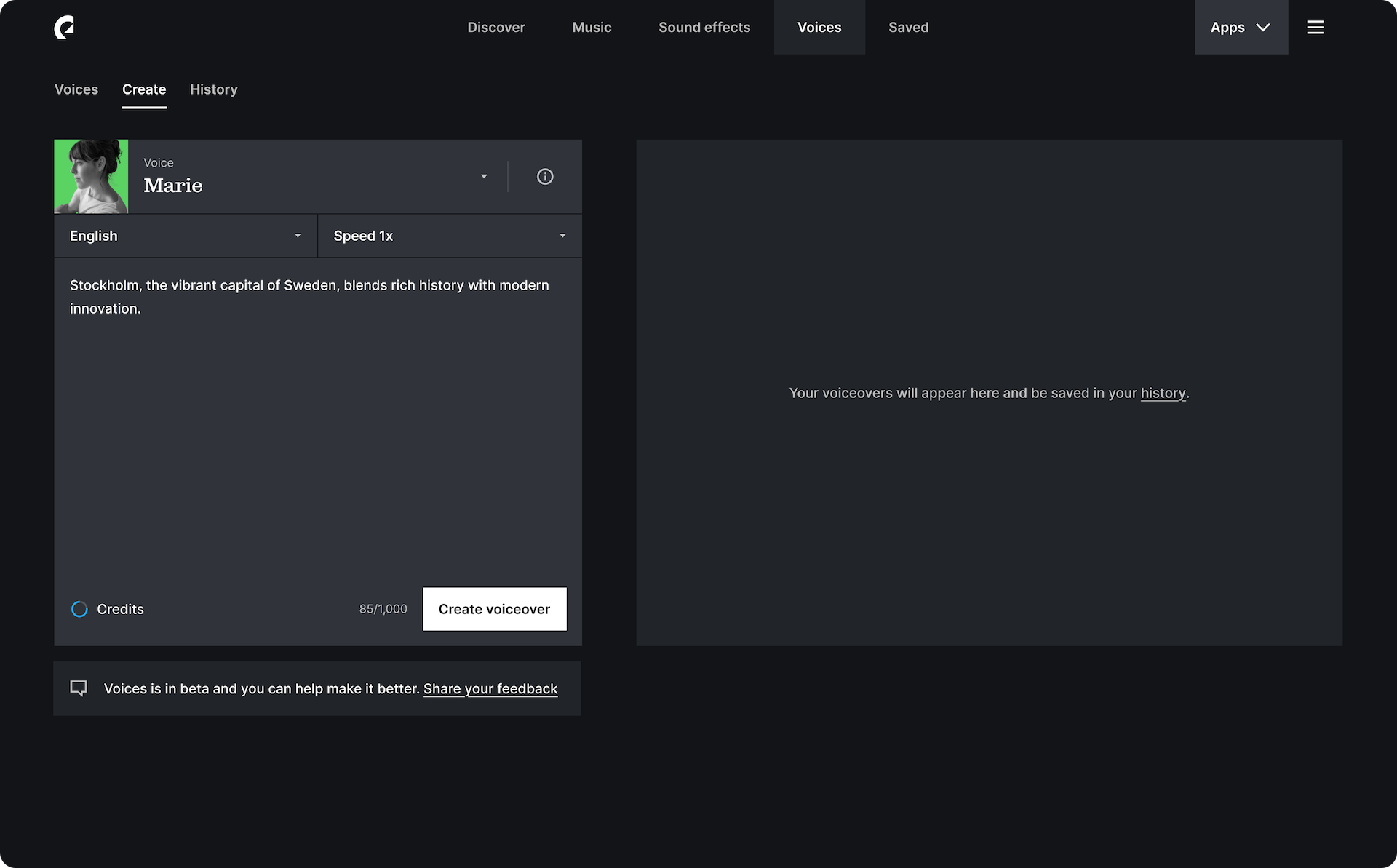
Create voiceover
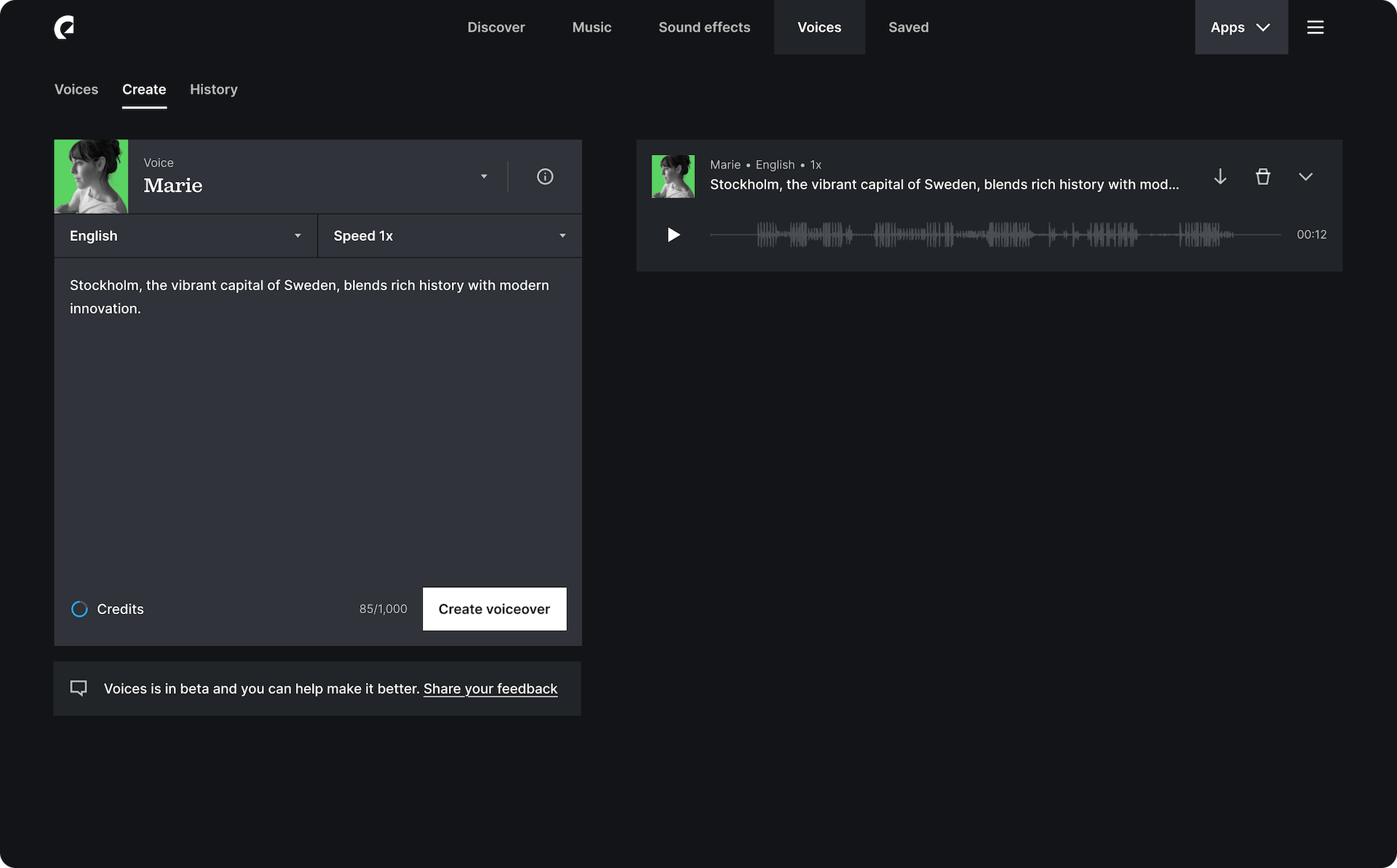
Preview voices
How to view your voiceovers
The“History” tab contains all the details about the voiceovers you’ve created. Here’s how to access that info:
- Log in to your account and select “Voices” from the navigation bar.
- Next to the Voices overview, click “History.”
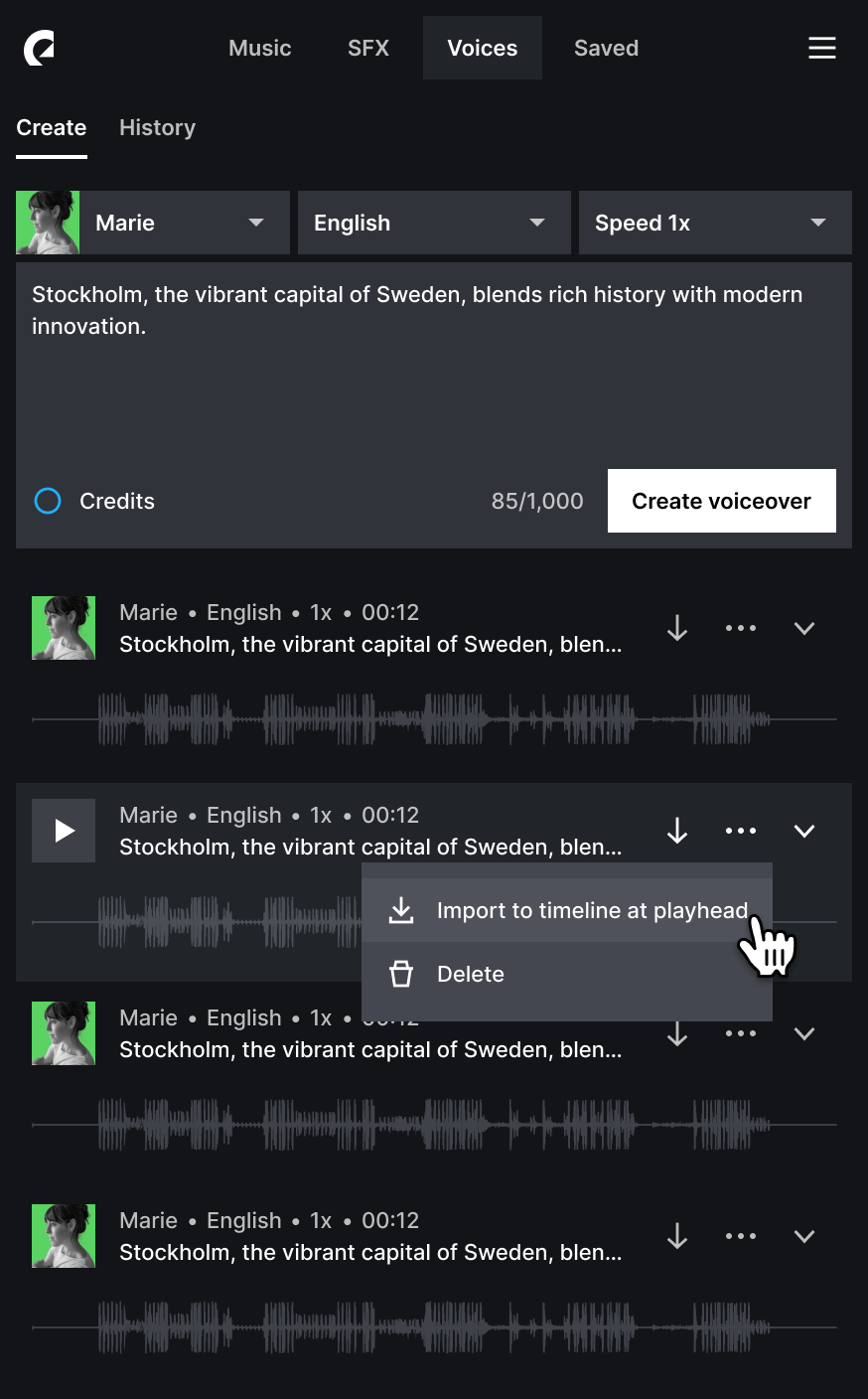
- Scroll down to see the list of voiceovers you’ve created, with details about each, such as the voice artist’s name, date and time of each voiceover, length, and waveform.
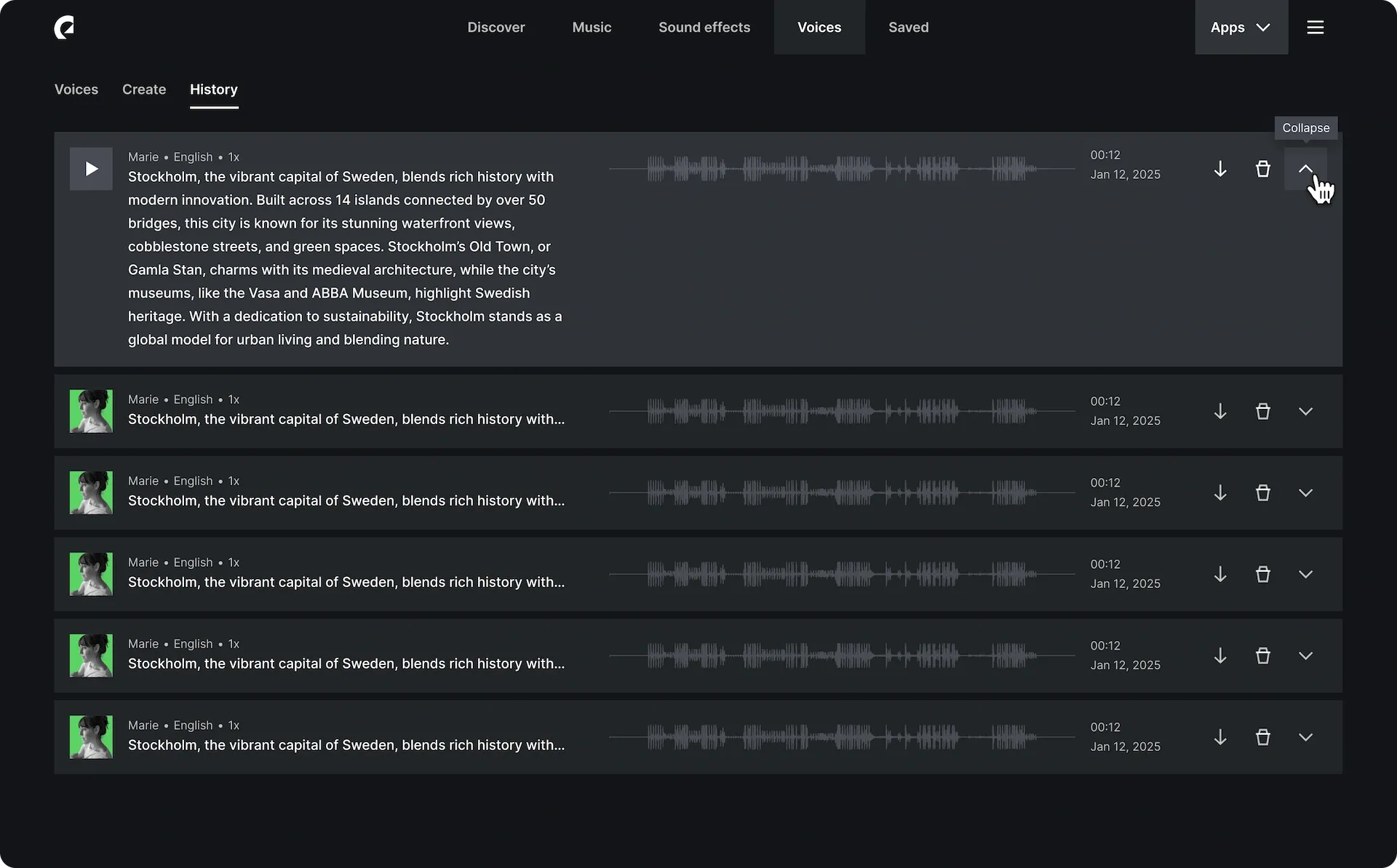
How to manage your voiceovers
You’ll find three action icons to the right of each voiceover:
- Click the download icon to download your voiceover.
- Click the delete icon to delete your voiceover.
- Click the expand icon to view the text used to create the voiceover.
Interested? Try it out below.
2. How to create voiceovers directly in your video editor
Craft voiceovers directly in Adobe Premiere Pro, After Effects, Audition, and DaVinci Resolve Studio using Epidemic Sound’s plugins.
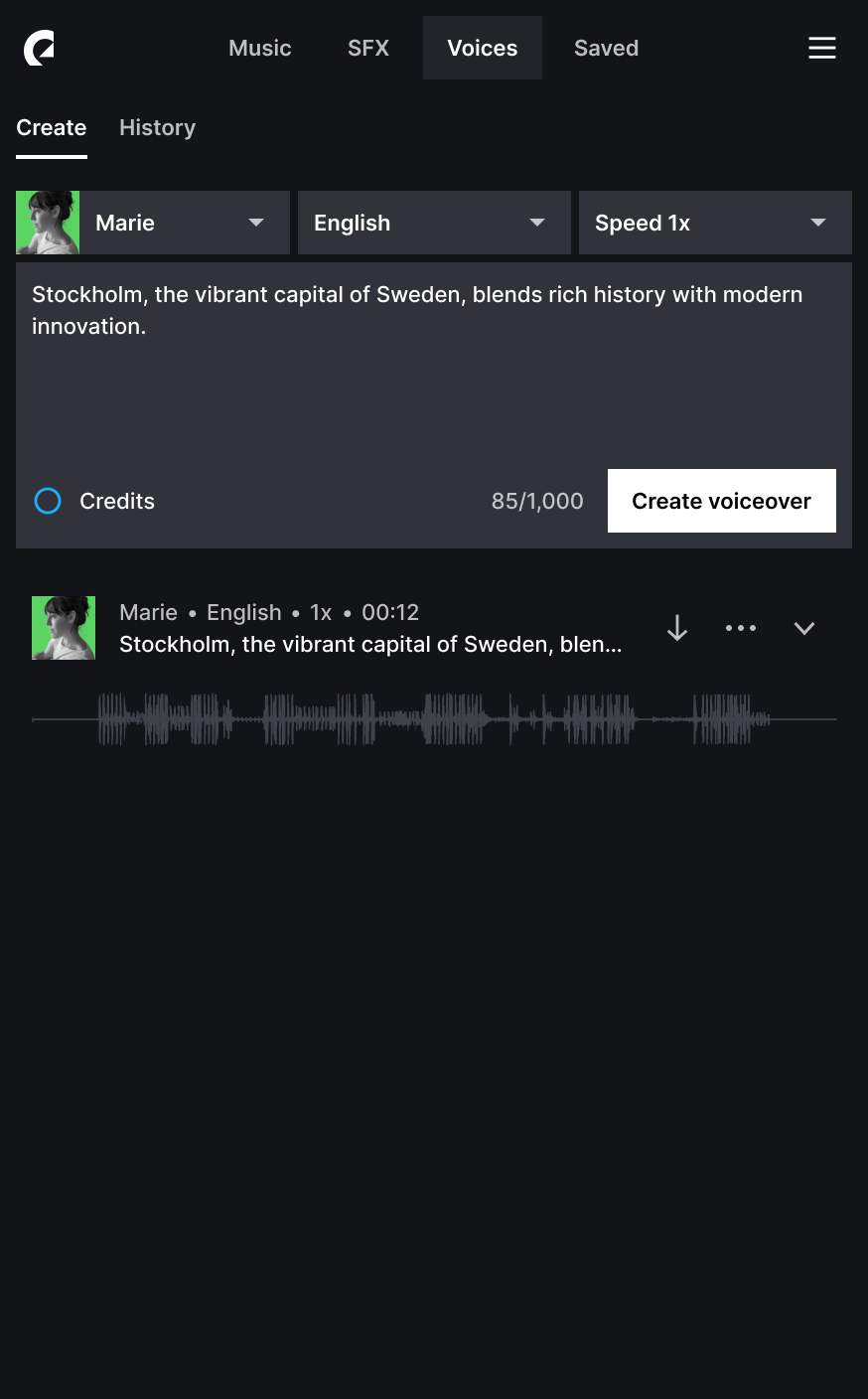
How to create voiceovers
- Log in to your account and select “Voices” from the navigation bar.
- The “Create Voiceover” tab will open.
- Click the dropdown menu to preview and select a voice from the full list of options.
- In the dropdown above the text box, select the text’s language.
- Use the “Speed” dropdown to adjust the speed. Choose from a range between 0.8x and 1.2x speed.
- Type your text in the desired voiceover language.
- Click “Create voiceover.” Your voiceover will appear underneath the text box.
3. Tips for creating voiceovers
Nuances like pronunciation, inflection, and pauses give you more control over your voiceovers.
Pronunciation
- Select the language that matches the text you type into the box.
- Spell out acronyms as they are pronounced, writing each letter phonetically. For example, C → “see,” G → “gee,” K → “kay,” O → “oh.”
Inflection
- Add punctuation where necessary, and at the end of each transcript whenever possible.
- Avoid using quotation marks, unless you intend to refer to a quote.
- Use two question marks to emphasize questions. For example, “Are you here??” vs. “Are you here?”
Pauses
- To add a pause, use a comma (,) or a dash (-). You can also click the “add pause” button.
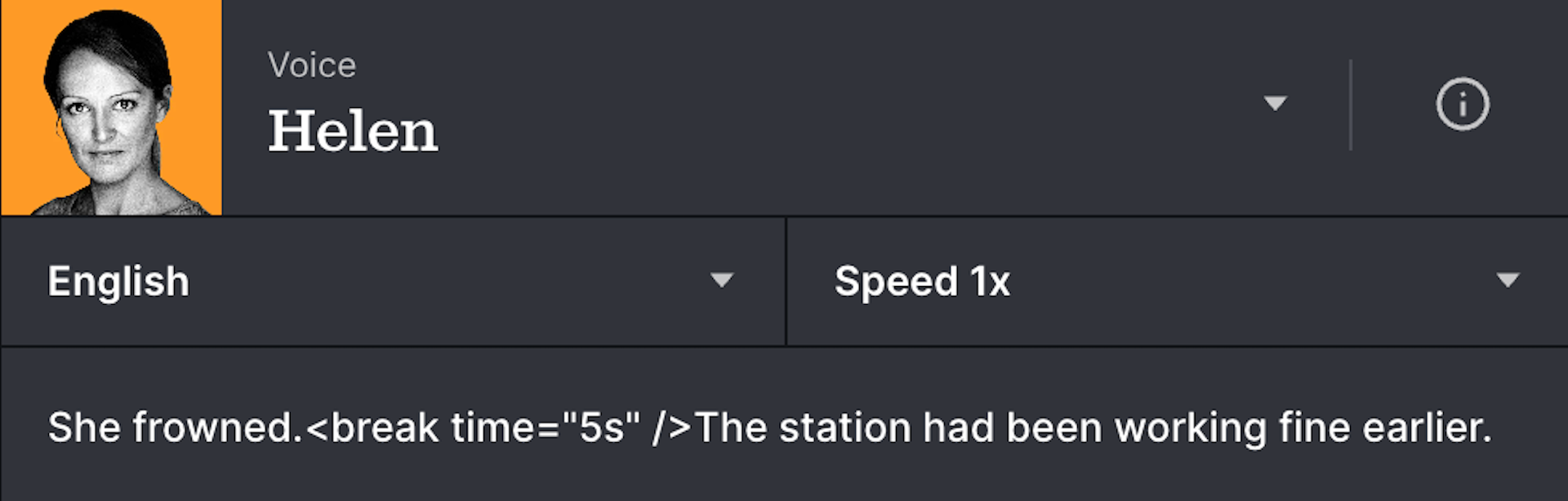
- To indicate the length of a pause, add the <break/> tag where you want the timed pause, then specify the duration in seconds (s) or milliseconds (ms). For example, “She frowned. <break time="5s" /> The station had been working fine earlier.” When including quotation marks here, you’ll need to use "straight" quotes rather than “curly” ones. Take a look at the image below for a more visual example.
- These tags are considered 1 character, and don’t need to be separated from adjacent text using a space. To save credits, remove spaces around break tags.
Numbers and symbols
- Use dates in MM/DD/YYYY format, or write it out. For example, write 02/27/2025 or February 27th, 2025.
- Avoid symbols or special characters. Write the word instead. For example, write “and” instead of “&.”
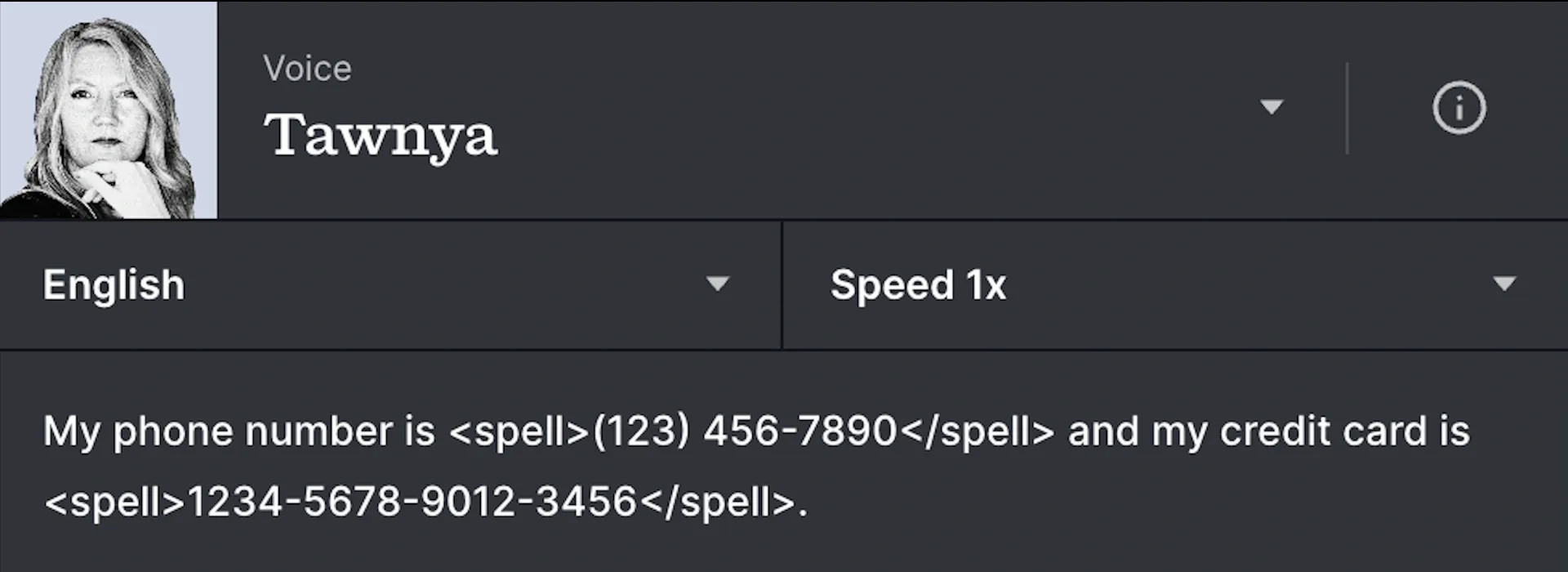
- To spell out input text, wrap it in <spell> tags. This is particularly useful for pronouncing long numbers or identifiers, such as credit card numbers, phone numbers, or unique IDs. For example: “My phone number is <spell> (123) 456-7890 </spell> and my credit card is <spell> 1234-5678-9012-3456 </spell>.”
URLs
- Write the URL as you’d read it out loud. For example, write “Epidemic Sound dot com” instead of “Epidemicsound.com.”
- Use a space between a URL or email and a question mark. Otherwise, the question mark will be read out. For example, write “Did you send the email to hello@email.epidemicsound.com ?” instead of “Did you send the email to hello@email.epidemicsound.com?”
Direct delivery with emotion tags (ElevenLabs only)
If you’re using ElevenLabs, shape the vocal delivery and emotional expression by adding tags inline in your text. For example:
- Laughter: [laughs], [laughs harder], [starts laughing], [wheezing]
- Volume and breath: [whispers], [sighs], [exhales]
- Mood and tone: [sarcastic], [curious], [excited], [crying], [snorts], [mischievously]
Control pronunciation with IPA (ElevenLabs only)
If ElevenLabs struggles with a particular word or phrase, spell it out using the International Phonetic Alphabet (IPA), wrapped in slashes. For example:
“Welcome to /ˌɛpɪˈdɛmɪk saʊnd/. Get ready to create something beautiful.”
4. Tips for creating voiceovers using your own voice
With Voices by Epidemic Sound, you can create a digital replica of your own voice and use it as a voiceover. To access this speech-to-speech feature, toggle from “Text” to “Speech” in the “Create Voiceover” tab. This feature is available with ElevenLabs, but isn’t supported by Cartesia.
Record in the language you want your voiceover in, upload the audio file (maximum 30 MB), type your text, adjust the pacing, and create a high-quality voice replica.
Example script:
Hi there, thanks for helping me create my custom voice. I’ll be reading a short passage that includes a mix of tones, emotions, and sentence types. This will help capture the full range of how I naturally speak. Let’s start with something conversational. Sometimes, the best ideas happen when you least expect them. Like in the middle of making coffee, or while you’re walking the dog. Inspiration doesn’t always show up on schedule, and that’s what makes it exciting. I’ve learned that creativity flows best when you’re relaxed, not when you’re staring at a blank screen. It’s funny how your brain works in the background. You think you’re not being productive, but then suddenly — boom — an idea pops into your head. It’s like your mind just needed a little space to breathe.
Now let’s shift gears a bit. The universe is vast. Over 93 billion light-years across, as far as we know. And in that massive stretch of space, here we are, sharing this moment together. It’s kind of incredible when you think about it. A tiny blue dot, spinning in space, filled with people trying to make sense of things. We build, we wonder, we explore. We tell stories, chase dreams, and try to leave the world a little better than we found it. Maybe that’s the most human thing of all — our endless curiosity, and the hope that what we do matters, even just a little.
Let’s try something descriptive. Imagine standing on a quiet beach just before sunrise. The air is cool, the sky slowly shifting from deep navy to soft pink. Waves roll in gently, one after another. There’s a calm that settles over everything, like the world is holding its breath. You take a deep breath, and for a moment, nothing else matters. Far in the distance, a gull calls out. The sand is cool beneath your feet, and the only footprints are your own. You feel present. Grounded. Like you’re exactly where you’re meant to be.
Now back to a more relaxed tone. No matter what your voice is used for, whether it’s narrating a video, assisting with accessibility, or just for fun, it’s a reflection of you. So don’t stress. Just speak the way you normally do. Friendly, confident, and uniquely you. There’s something kind of cool about hearing yourself in a new way — like meeting a version of you from a slightly different angle. And if it helps someone else connect, understand, or just enjoy a moment, then that’s even better.
Almost done. Thanks for sticking with me through this recording. Hopefully this gives enough variety in tone and pacing to build a pretty accurate voice model. And hey, if nothing else, it was a fun way to hear myself talk for a few minutes. That’s it for now. Thanks again, and talk to you soon!
You can also follow the below guidelines for better results.
Recording equipment
- Use high-quality recording equipment for the clearest sound. While any microphone can work, a professional-grade microphone will deliver the best audio fidelity.
- A pop filter is recommended to minimize plosive sounds (“p” and “b”) sounds.
Microphone positioning
- Position the microphone about a fist’s length away for a natural balance of clarity and resonance.
- Adjust based on the tone and style you want to achieve.
Noise-free environment
- Record in a quiet space free from background noise, music, or other interference.
- Clean, uninterrupted audio will ensure the best possible voiceover output.
Consistent volume and delivery
- Speak naturally and maintain a steady tone throughout.
- Avoid long pauses to keep your voiceover smooth and cohesive.
Language consistency
- Make sure you’re speaking in the same language you want your voiceover to be in. For example, if you want the final voiceover in Spanish, record your voice sample in Spanish.
- Choose a script that matches the voice and style you want to create.
*This is an updated version of an article first published in April 2025. Changes have been made to reflect Voices’ current capabilities.